Step 7: Domain owner login
Every Website protection domain comes with owner access. The owner of the site (your customer) can sign in to owners.stillorigin.app to see their site's protection, and change the settings you allow, without a stillorigin account. In this step you choose what owners can change, set your support link, try the owner area yourself, and see how your client area can give customers a sign-in link.
You'll need: a domain with Website protection (step 6), and to be an account owner. Other users can see the settings but can't change them.
The owner area is stillorigin-branded, but stillorigin doesn't offer support to domain owners. Your customers get help from you, through the support link you set below.
1. Open Owner access
Open the menu at the bottom of the sidebar (your email and account name) and click Owner access. The page is headed Domain owner access.
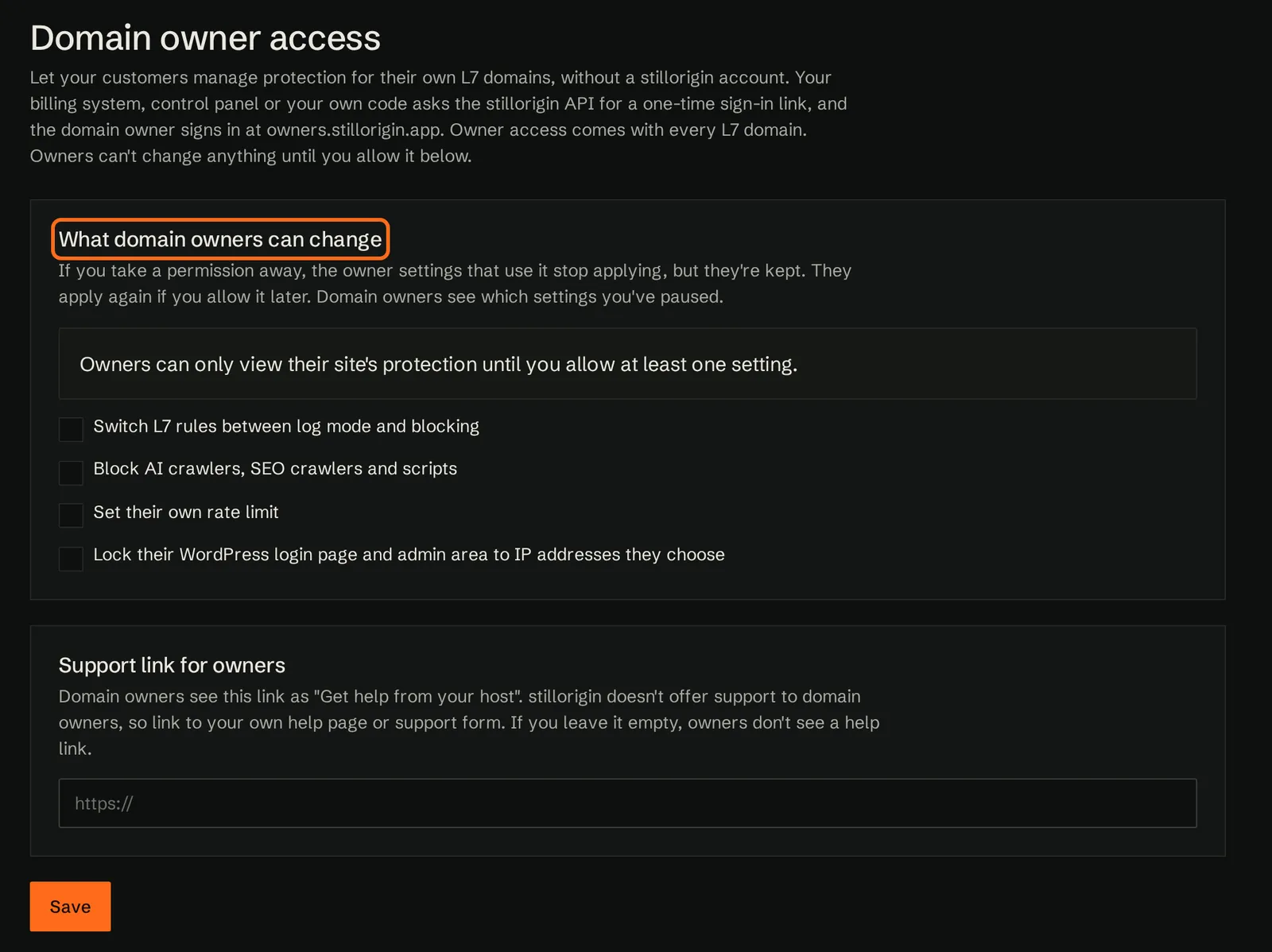
2. Choose what domain owners can change
Every permission is off by default. While none is allowed, the page shows Owners can only view their site's protection until you allow at least one setting. That's a safe place to start.
Under What domain owners can change, tick the settings you want to allow:
- Switch Website protection rules between log mode and blocking
- Block AI crawlers, SEO crawlers and scripts
- Set their own rate limit. If you allow this, you can cap it with Highest requests per second an owner can set and Highest burst an owner can set. Leave them empty to cap owners at each cluster's Website protection rate limit.
- Lock their WordPress login page and admin area to IP addresses they choose. An owner who leaves their own address off the list locks themselves out of their WordPress login, so only allow this if your customers are happy to manage it. A lock you turn on stays yours: owners can't change or turn it off. They can set their own lock only while yours is off. See Admin login lock.
- Block identified services, such as AI crawlers, on their domain (domains with Website protection only). The owner can block a group or a single identified service on their Website protection domain. Your blocks are locked. See What domain owners can change.
Then click Save. You should now see Owner access saved.
The permissions apply to every domain owner in your account. See What domain owners can change.
3. Set your support link
Under Support link for owners, enter the address of your own help page or support form. It must start with https://. Owners see it as Get help from your host. If you leave it empty, owners don't see a help link.
Click Save.
4. Try it with Test owner login
Test owner login shows you the owner area exactly as a domain owner sees it.
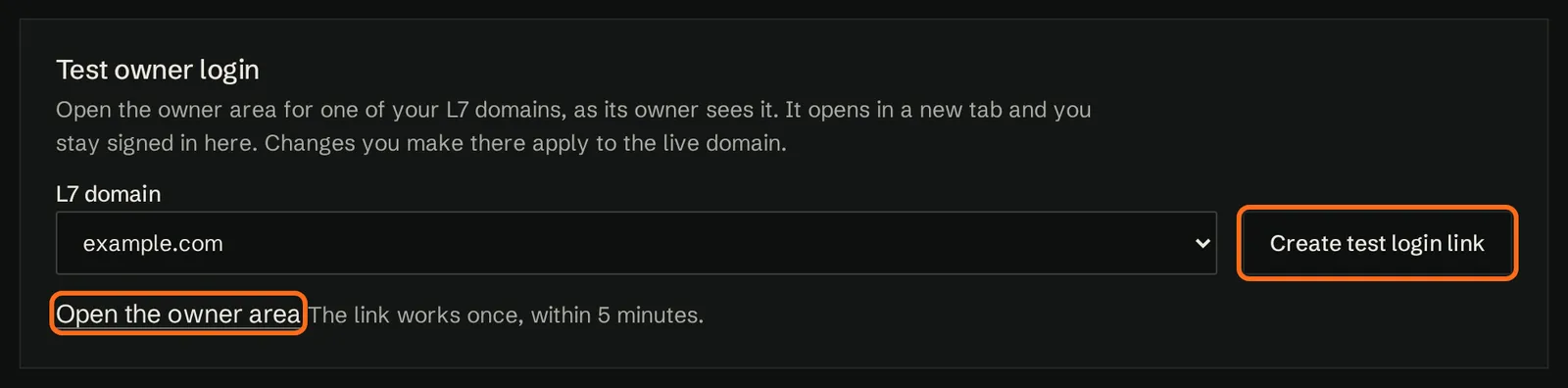
- Under Test owner login, choose the Website protection domain.
- Click Create test login link.
- Click Open the owner area. It opens in a new tab, and you stay signed in to the portal. The link works once, within 5 minutes.
You should now see the owner area with the banner You're using a test owner login. Changes you make here apply to the live site. The header shows the site name, a Website protection badge, Website protection rules: Log mode or Website protection rules: Blocking, and Under Attack. There are six tabs: Overview, Traffic, Blocks, Protection, Countries and Settings.
- Overview shows 24-hour totals, including Allowed requests and Blocked requests.
- Traffic shows Traffic, last 24 hours and a map of requests by the visitor's country: Requests to your site, by the visitor's country. No IP addresses are stored or shown here.
- Blocks shows Why requests were blocked, in plain words, such as Request for a private file, Most blocked IP addresses, and Would have blocked, last 24 hours when the site is in log mode.
- Protection is read-only: What's protecting your site right now. You can change some of these in Settings. Your host manages the rest.
- Countries is where the owner can block or check visitors by country. Countries you set show as Blocked by your host, Checked by your host or Logged by your host.
- Settings is where the owner changes what you've allowed.
Settings you haven't allowed show as managed by you, for example Your host manages this setting.
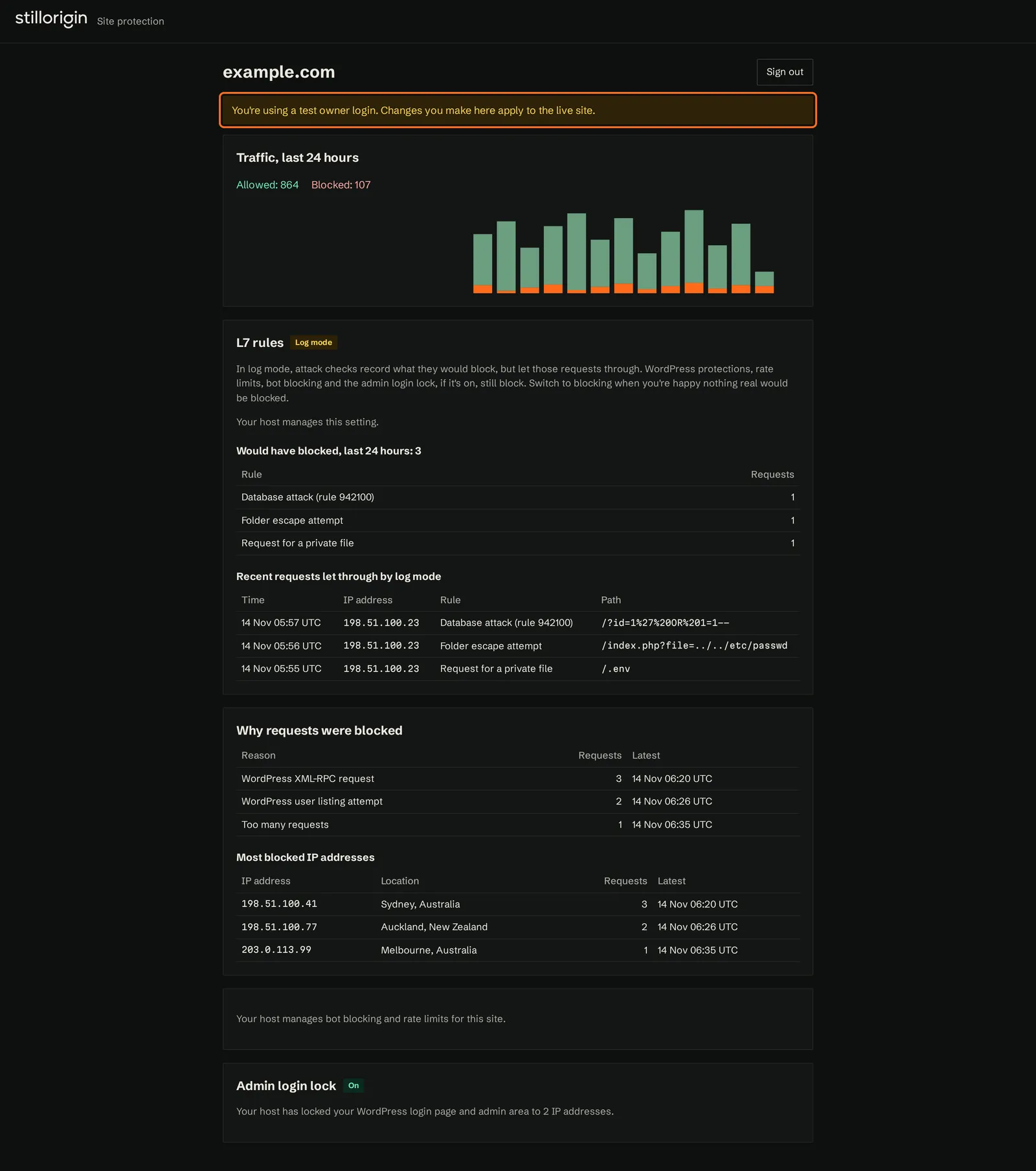
Anything you change in the owner area applies to the live domain, even with a test login.
Test sign-ins appear in your Audit log as domain owner (test login).
5. Give your customers a sign-in link
For real customers, your billing system, control panel or your own code asks the stillorigin API for a one-time sign-in link when the customer clicks a button, then sends their browser to it. Each link opens one domain, works once, and expires after 5 minutes.
The free WHMCS module turns Website protection on when an order is set up and gives your clients a Manage protection button that creates the link for them. On cPanel servers, the origin agent installs the free cPanel plugin, which adds a Manage protection page to cPanel that does the same. You don't need to write any code.
curl -sS https://control.stillorigin.app/v1/owner-logins \
  -H "Authorization: Bearer $STILLORIGIN_API_KEY" \
  -H "Content-Type: application/json" \
  -d '{"domain": "example.com"}'
A successful request returns 200 with the sign-in url, when it expires (expiresAt) and the domainId. Send the customer's browser to the url straight away. A 409 with not_l7 means Website protection isn't on for that domain, so it has no owner access.
Use your account's API key, or the origin agent's key on that origin server. Run this on your server only, never in the customer's browser, and treat each link like a password: don't log it, email it or store it.
See Creating sign-in links with the API for the full request, the errors, and an example Site protection button for your client area.
Owner sessions
An owner's session ends after 30 minutes without activity, or 8 hours after they signed in. It also ends straight away if the domain stops having owner access, for example when Website protection is turned off. The owner is then asked to open the site again from their hosting account.
Common problems
| Problem | What to do |
|---|---|
| You don't have any domains with Website protection yet. Turn on Website protection for a domain to test owner access. | Turn on Website protection for a domain first (step 6). |
| The settings are greyed out, or Test owner login isn't available | Only an account owner can change these settings or use Test owner login. |
| The link says it has expired or was already used | Links work once, within 5 minutes. Create a new one. |
The API returns 401 | The key is missing or not recognised. Check the Authorization: Bearer header and that the key is current. |
The API returns 429 with rate_limited | More than 120 links in a minute for one key. Wait a little and try again. |