Step 5: Set up Network protection and test it
Network protection is on for every domain as soon as you add it. It works on connections, so it doesn't need to decrypt anything or have your certificate. In this step you send test traffic through the sentry, check the results in the portal, and then point DNS at the sentry so real visitors are protected.
What Network protection does
For every domain, on ports 80 and 443, each sentry:
- limits how many new connections each visitor IP address can open per second, and how many it can hold open;
- gives Search engines and AI crawlers their own, separate limits;
- temporarily bans addresses that keep going over the limits;
- drops addresses on your deny list and on the stillorigin naughty list;
- passes HTTPS straight through to the right origin by hostname, without decrypting it.
The limits are set per cluster, on the cluster's Edit page, and the defaults suit most sites. You don't need to change anything to start. See Network protection vs Website protection and Scraper throttling.
You'll need: your sentry's public IP address (from the sentry's page), your test domain, and a computer with a terminal or browser. The examples use the sentry address 203.0.113.10 and example.com: use your own.
1. Check your own address isn't listed
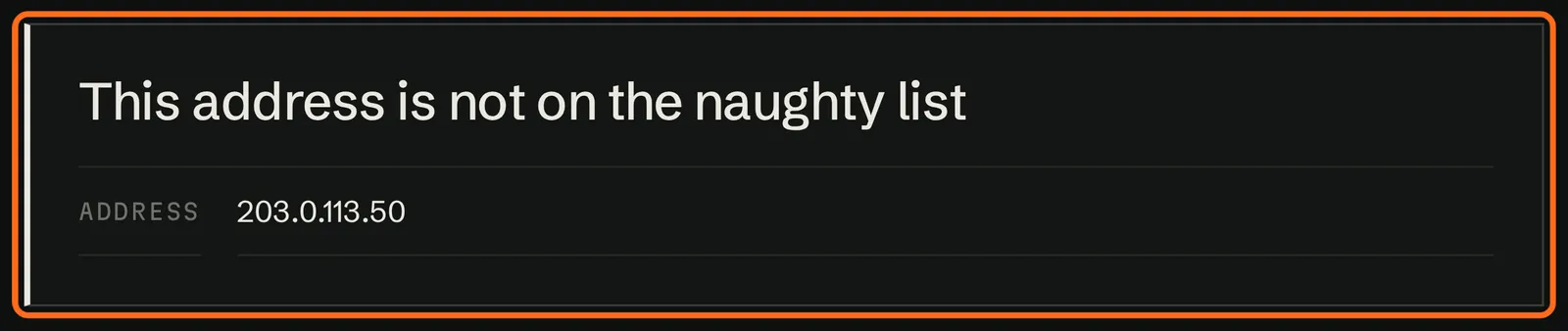
Before you test, make sure the address you're testing from isn't on the naughty list. Open stillorigin.app/check: it checks the address you're visiting from straight away. From a server without a browser, run:
curl https://stillorigin.app/check
You should see that the address is not listed. See Checking an IP address.
2. Send test requests through the sentry
You can test without changing DNS. curl --resolve sends a request for your domain to the sentry's address, only for that one command.
On your computer (or any server that isn't the origin), run:
# Plain HTTP through the sentry
curl -I --resolve example.com:80:203.0.113.10 http://example.com/

# HTTPS through the sentry (passed through to the origin, unopened)
curl -I --resolve example.com:443:203.0.113.10 https://example.com/
You should see the same answer the site normally gives, such as HTTP/1.1 200 OK or a redirect (301 or 302). For HTTPS, the site's own certificate is used, because the sentry passes HTTPS through unopened.
Now check that the sentry turns away a hostname you haven't added:
curl -I -H "Host: not-my-site.invalid" http://203.0.113.10/
You should see 403 Forbidden. The sentry only serves the domains you've added.
3. Test in your browser with the hosts file
To browse the site through the sentry, map the domain to the sentry's address in your computer's hosts file. Only your computer is affected. Follow Testing with your hosts file, then:
- Close and reopen your browser.
- Visit
http://example.comandhttps://example.com, includingwwwif you use it. - Click around a few pages, and log in to the site if it has a login.
You should see the site working normally.
4. Check it's working in the portal
Traffic figures update within a few minutes.
- Open Domains. On your domain's row:
- Passthrough HTTPS / hr counts HTTPS connections passed through to the origin;
- Allowed/hr counts plain HTTP requests that were let through;
- Blocked/hr counts HTTP requests that stillorigin blocked. Your site's own error responses, such as a 404, count under Allowed/hr.
- Click the domain's name to open its page, then open the Traffic tab. Web requests and Passthrough HTTPS connections show your test traffic by the hour, and By sentry shows which sentry handled it.
- Open Clusters and expand your cluster. The live readings tiles, such as New connections and Open connections, show the busiest IP address against your limits.
- Open Logs. On Blocked IPs, your
not-my-site.invalidtest shows with the reason unknown-host. To find it quickly, set Reason to HTTP denial, or typeunknown-hostin Search. Logs show samples, so not every request appears.
On the Getting started card, Point your domain's DNS at your sentry ticks once the sentry has counted traffic for your domain, and the hosts file test counts too.
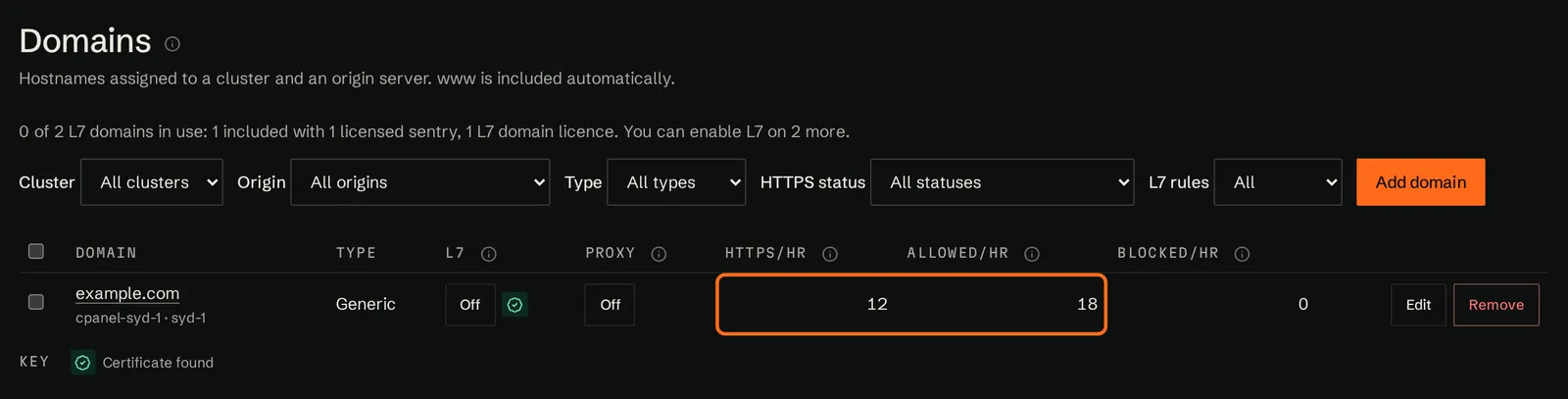

See Domain traffic columns for why connections and requests don't add up.
Don't run load tests or open hundreds of connections at once to "see it block". If your address goes over the limits, the sentry drops your connections and bans your address for the cluster's Temp ban (minutes) (10 minutes by default), and adds it to the cluster's Deny list for a while. If that happens, open Logs › Temporary bans and click Unban, then remove your address from Deny list.
5. Check the origin sees real visitor addresses
With the hosts file entry still in place, visit http://example.com/ (plain HTTP) and check the origin's access log, or $_SERVER["REMOTE_ADDR"] in PHP. It should show your address, not the sentry's. If it shows the sentry's address, check step 3.
Over HTTPS, while Website protection is off, the origin sees the sentry's address. That's expected: see What about HTTPS? in step 3.
6. Point DNS at your sentries
When the tests pass, make the change for everyone.
- A day ahead, lower the TTL of the records you're about to change, for example to 300 seconds. Then you can switch back quickly if you need to.
- At your DNS provider, replace the domain's A record with one A record per sentry, each pointing at that sentry's public IPv4 address. With one sentry, use a single A record. With several, DNS spreads visitors across them (round-robin DNS).
- Do the same for
wwwif it has its own A record. - Remove any AAAA (IPv6) records that point straight at the origin, or IPv6 visitors will bypass the sentry. If your sentries have IPv6 addresses, you can add one AAAA record per sentry instead.
- Remove the lines you added to your hosts file, so you test what everyone else sees.
You should now see, once the old TTL has passed:
dig +short example.com
dig +short AAAA example.com
showing only your sentries' addresses. On Domains, the domain's traffic figures rise as real visitors arrive.
If a sentry goes down: round-robin DNS does not check whether a sentry is healthy, so some visitors keep being sent to the failed sentry. Remove its A record until it is back. A low TTL (such as 300 seconds) makes this take effect quickly.
Once everything works, you can restrict the origin's firewall so web traffic is only accepted from your sentries' addresses (see step 3).
Common problems
| Problem | What to do |
|---|---|
curl times out | Check that TCP 80 and 443 are open to everyone in your provider's firewall for the sentry, and that the sentry shows Online. |
403 Forbidden for your own domain over plain HTTP | The domain isn't on the sentry yet. Check it's on Domains, in the same cluster as the sentry, and wait about a minute after adding it. |
| HTTPS fails for your domain, but HTTP works | Check that the origin's HTTPS port on Origins is right, and that the origin accepts connections from the sentry on that port. If you turned on PROXY protocol, see If HTTPS stops working. |
| The stillorigin offline page appears | The sentry can't reach the origin, or it didn't answer in time. Check the origin's IP address and ports on Origins, and that the origin's firewall allows the sentry (see step 3). |
| The browser still shows the old site | Browsers cache DNS. Close the browser completely and open it again, and check the hosts file entry. |
| The traffic columns stay empty | Wait a few minutes. The figures are totals for the last 60 minutes, added up across your sentries. |
| You can't reach anything through the sentry | Your address may be banned. Check stillorigin.app/check, Logs › Temporary bans and Deny list. |