Step 4: Add your first domain
A domain in the portal is a site you host, linked to a cluster (which sentries protect it) and an origin (where its traffic goes). In this step you add one test domain. It starts with Network protection, which is always on. You'll turn on Website protection later, in step 6.
Adding a domain doesn't change anything for your visitors yet. Nothing reaches the sentry until you test with your hosts file or change DNS, in step 5.
You'll need: your sentry online (step 2) and your origin added (step 3).
Choose the domain's type
Each domain has a Type: Generic, WordPress, Drupal or Joomla. Pick the one that matches the site. With Website protection on, WordPress adds the WordPress rules, and the WAF uses tuning for WordPress or Drupal. If you're not sure, choose Generic.
With Website protection on, the WordPress login page and admin area stay open to everyone, so you and your customer can log in as usual. If you want, you can lock them to your own IP addresses later with the optional Admin login lock, in step 6.
Option A: add the domain by hand
- Open Domains and click Add domain. (Or click Add a domain on the Getting started card.)
- Fill in:
- Domain: the main domain or subdomain, for example
example.comorshop.example.com. Don't addwww.:wwwis included automatically. - Cluster: your cluster.
- Origin server: the origin that hosts the site.
- Type: see above.
- Domain: the main domain or subdomain, for example
- Click Add domain.
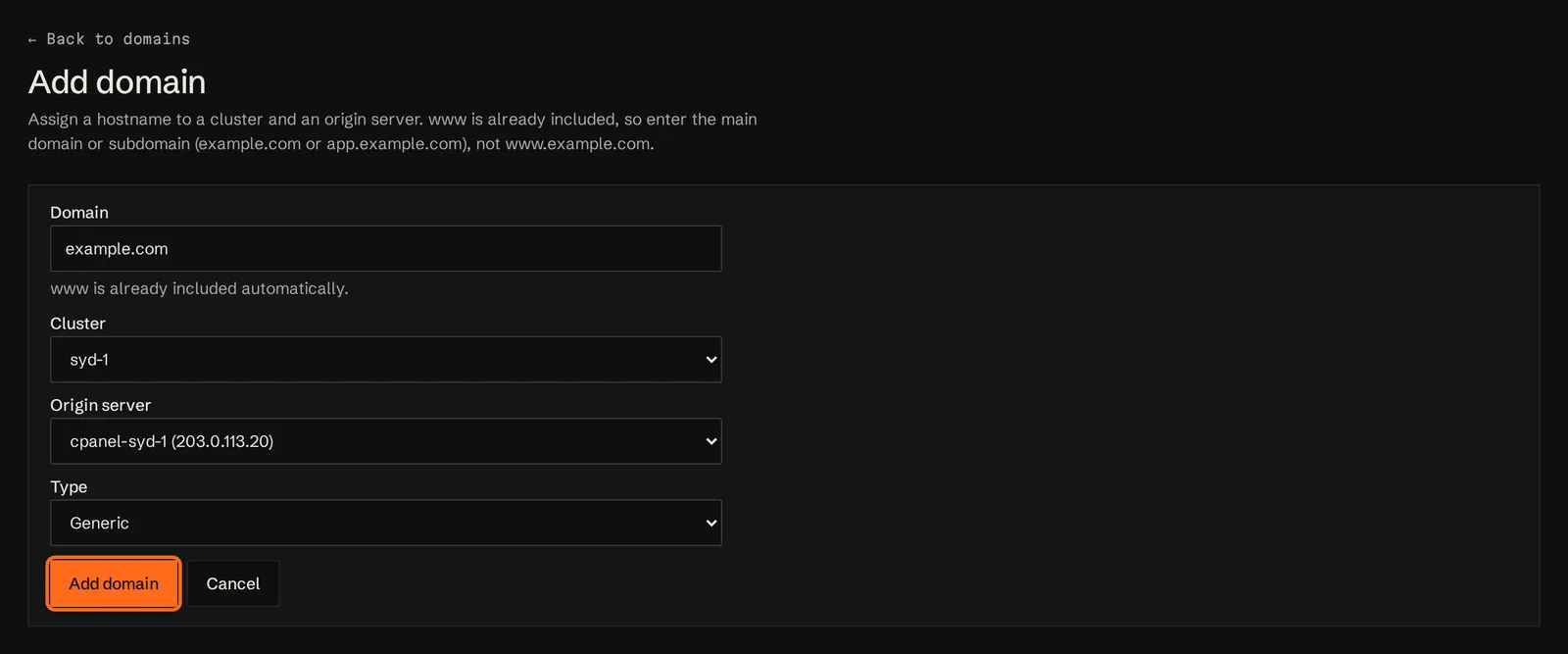
If you type www.example.com, the page tells you it will be saved as example.com, with www.example.com included automatically.
Option B: add it from the domains the origin agent found
If the origin agent is connected, it lists the domains it found on the origin server.
- Open Origins and click Edit on your origin.
- Scroll to Not protected yet. You can search the list. Certificate shows Found when the agent found a valid certificate for the domain, which you'll need for HTTPS inspection in step 6.
- Tick your test domain.
- Under Add to cluster, choose your cluster.
- Under Protection, choose Network protection.
- Click Add 1 domain.
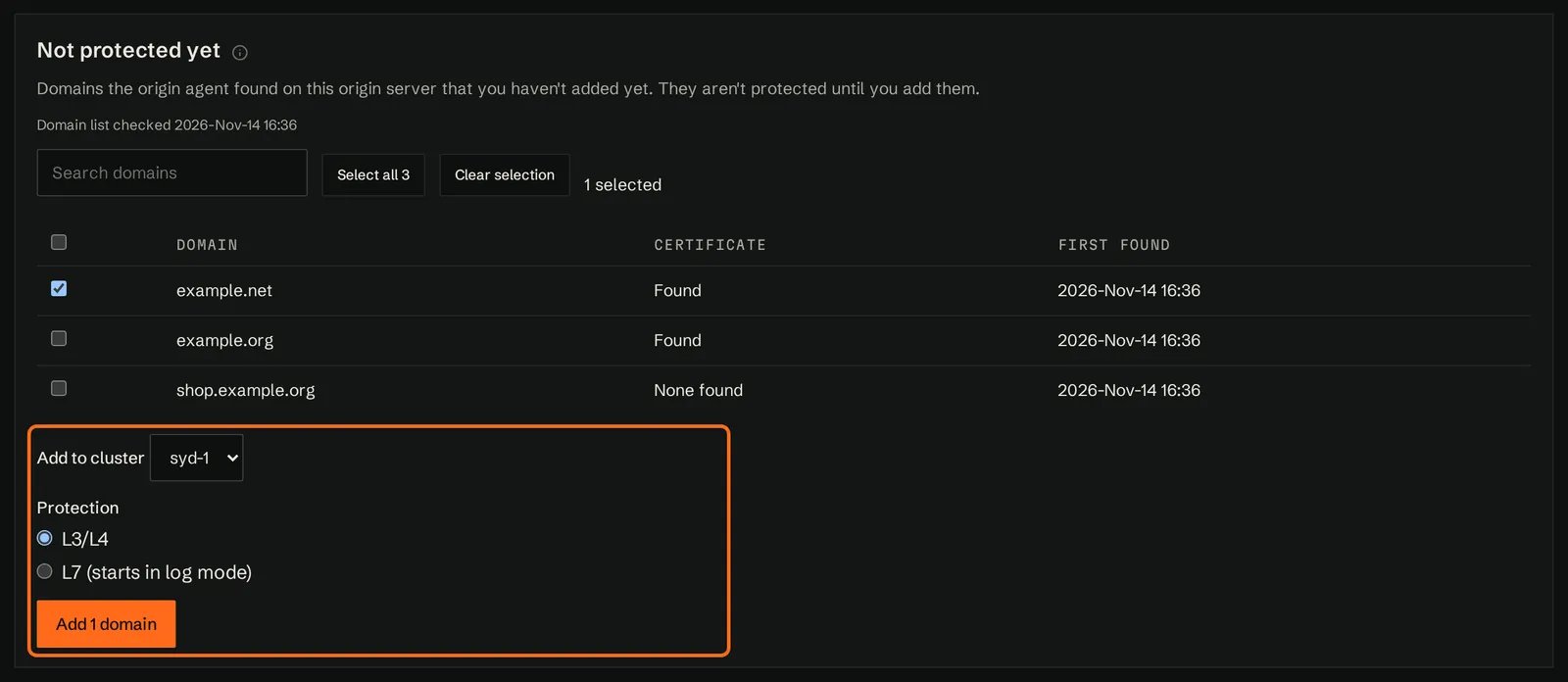
You should now see Domains added and Added 1 domain. If the domain needs a type other than Generic, open it on Domains, click Edit domain and check Type.
If the list says The origin agent hasn't sent this origin server's domain list yet., wait a few minutes and refresh. See Not protected yet.
Check the domain
You should now see your domain on Domains, with the cluster and origin under its name. The Website protection column shows Off: the domain has Network protection. The traffic columns (Passthrough HTTPS / hr, Allowed/hr and Blocked/hr) show — or 0 until traffic reaches the sentry in step 5.
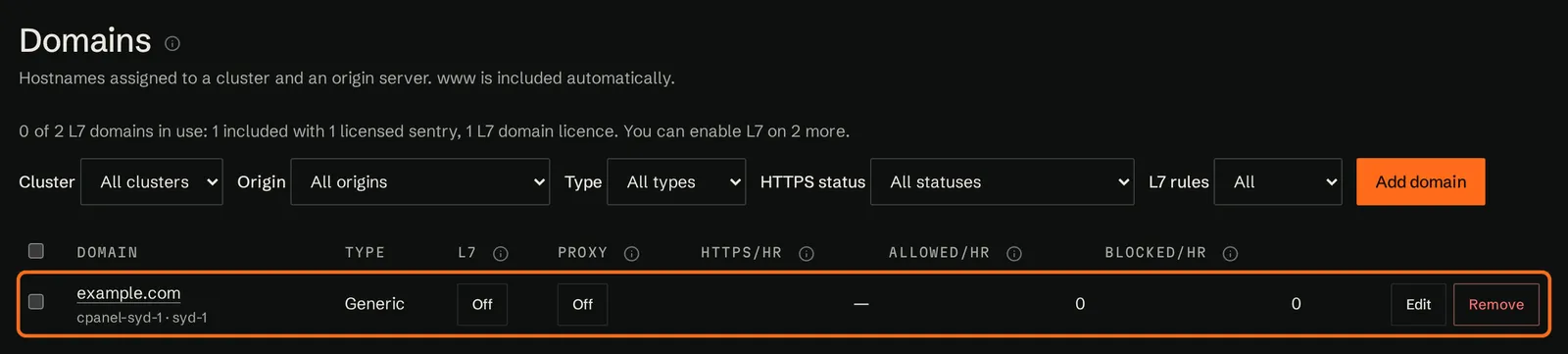
On the Getting started card, Add a domain is now ticked. Your sentries pick up the new domain within about a minute.
Common problems
| Problem | What to do |
|---|---|
| Add a cluster first or Add an origin first | A domain needs both a cluster and an origin server. Go back to step 2 or step 3. |
| Cluster, domain, and origin server are required. | Fill in every field. |
| The domain isn't under Not protected yet | The agent only lists domains it finds on that origin server, and hides ones you've already added. Use Add domain instead. |
| You chose Website protection (starts in log mode) by mistake | That's fine. You can carry on, or turn Website protection off with the On button on Domains. |
See Domains for everything on the Domains page.