Step 1: Sign up and start your trial
In this step you create your stillorigin account, confirm your email address and start the 30-day free trial. The trial gives you the licences you need for the rest of this guide: 1 sentry, 2 origins and 1 Website protection licence.
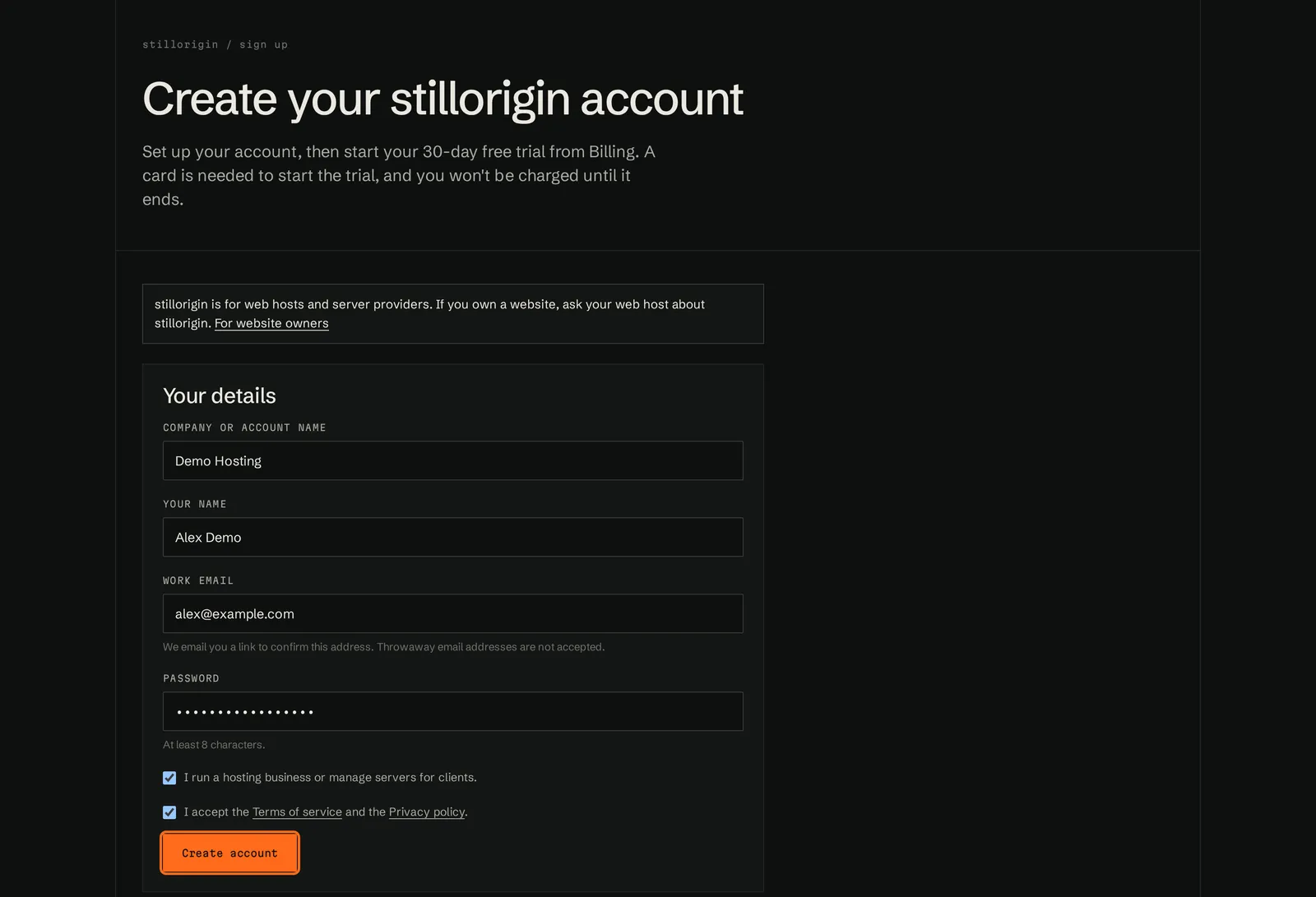
stillorigin is for web hosts and server providers. If you own a website, ask your web host about stillorigin instead.
1. Create your account
- Go to stillorigin.app/signup, or click Start a Free Trial on stillorigin.net.
- Under Your details, fill in:
- Company or account name: your business name. This becomes the account name in the portal.
- Your name
- Work email: we email a link to this address. Throwaway email addresses aren't accepted.
- Password: at least 8 characters.
- Tick I run a hosting business or manage servers for clients.
- Tick the box to accept the Terms of service and Privacy policy.
- Complete the Captcha Protection check, if it's shown.
- Click Create account.
You should now see Check your email.
2. Confirm your email
- Open the email from stillorigin with the subject Confirm your email to finish signing up for stillorigin. If you don't see it, check your spam folder.
- Click the link in the email within 24 hours.
- On the Confirm your email page, click Create my account.
You should now see the sign-in page with Your account is ready. Sign in to start your free trial.
3. Sign in
- Enter your email and password.
- We email you a 6-digit code. Enter it to finish signing in. The code works for 10 minutes.
See Logging in.
4. Enter your business details
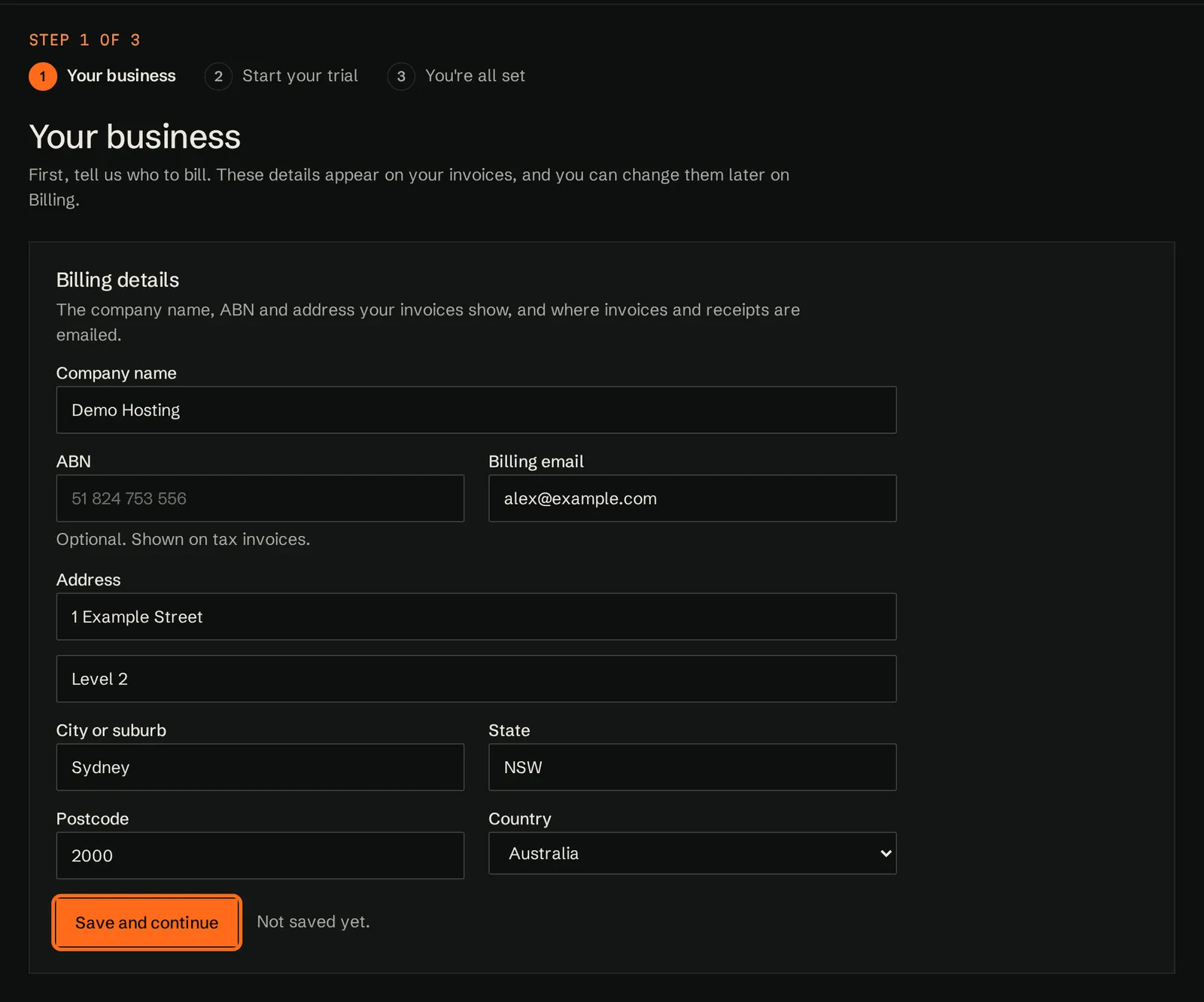
The first time you sign in, the portal opens a short setup wizard. Step 1 of 3 is Your business.
- Fill in your company name, tax ID (ABN when the country is Australia), billing email, address and country. These appear on your invoices, and you can change them later on Billing.
- Click Save and continue.
5. Start your 30-day trial
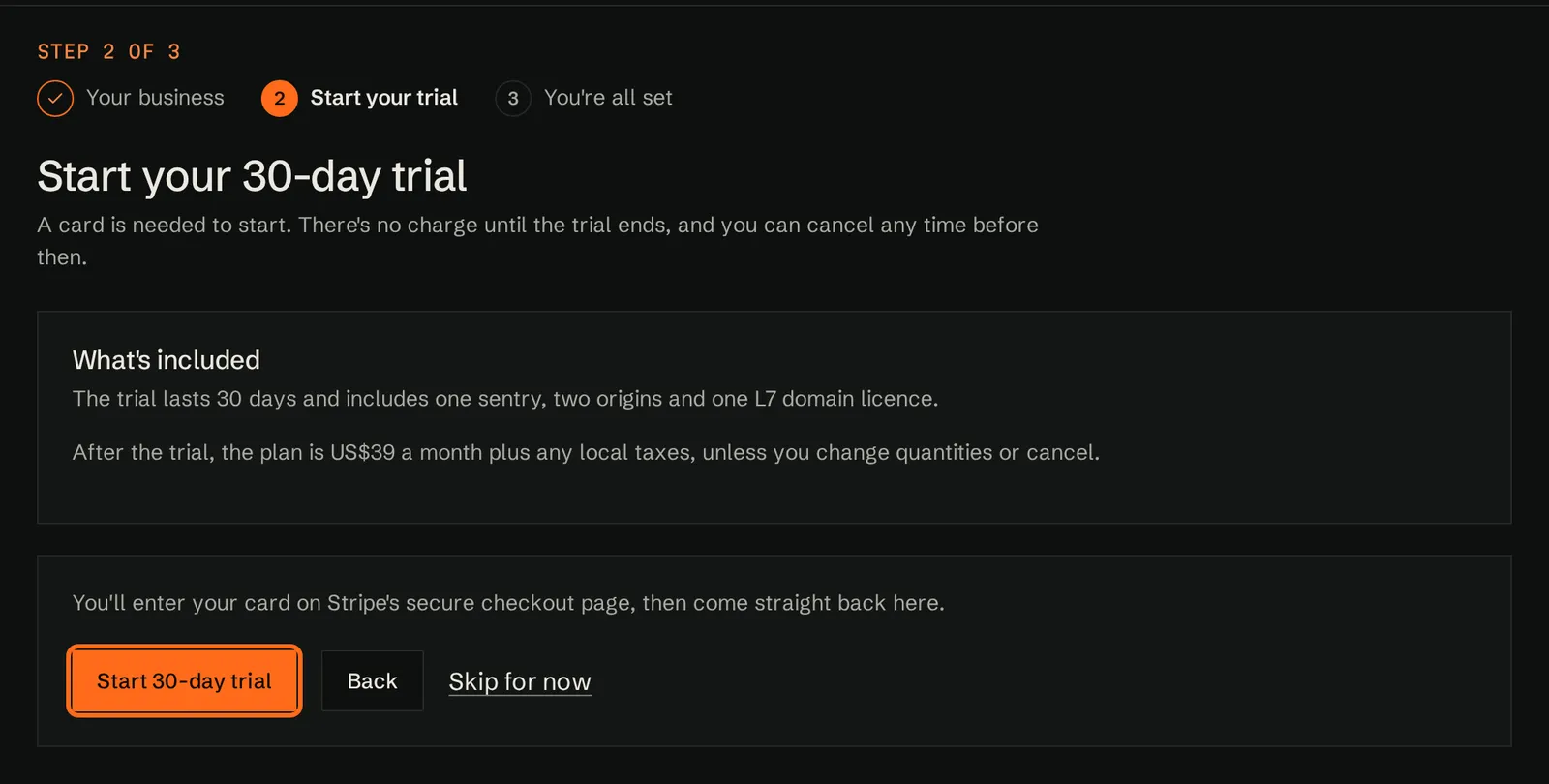
Step 2 of 3 is Start your 30-day trial. It shows what's included and what the plan costs after the trial.
- Click Start 30-day trial.
- Enter your card on Stripe's secure checkout page. You aren't charged during the trial.
- You come straight back to the portal.
You should now see You're all set, with the date your trial ends and a Next steps list. If it says We're setting up your trial, wait a few seconds: it updates by itself.
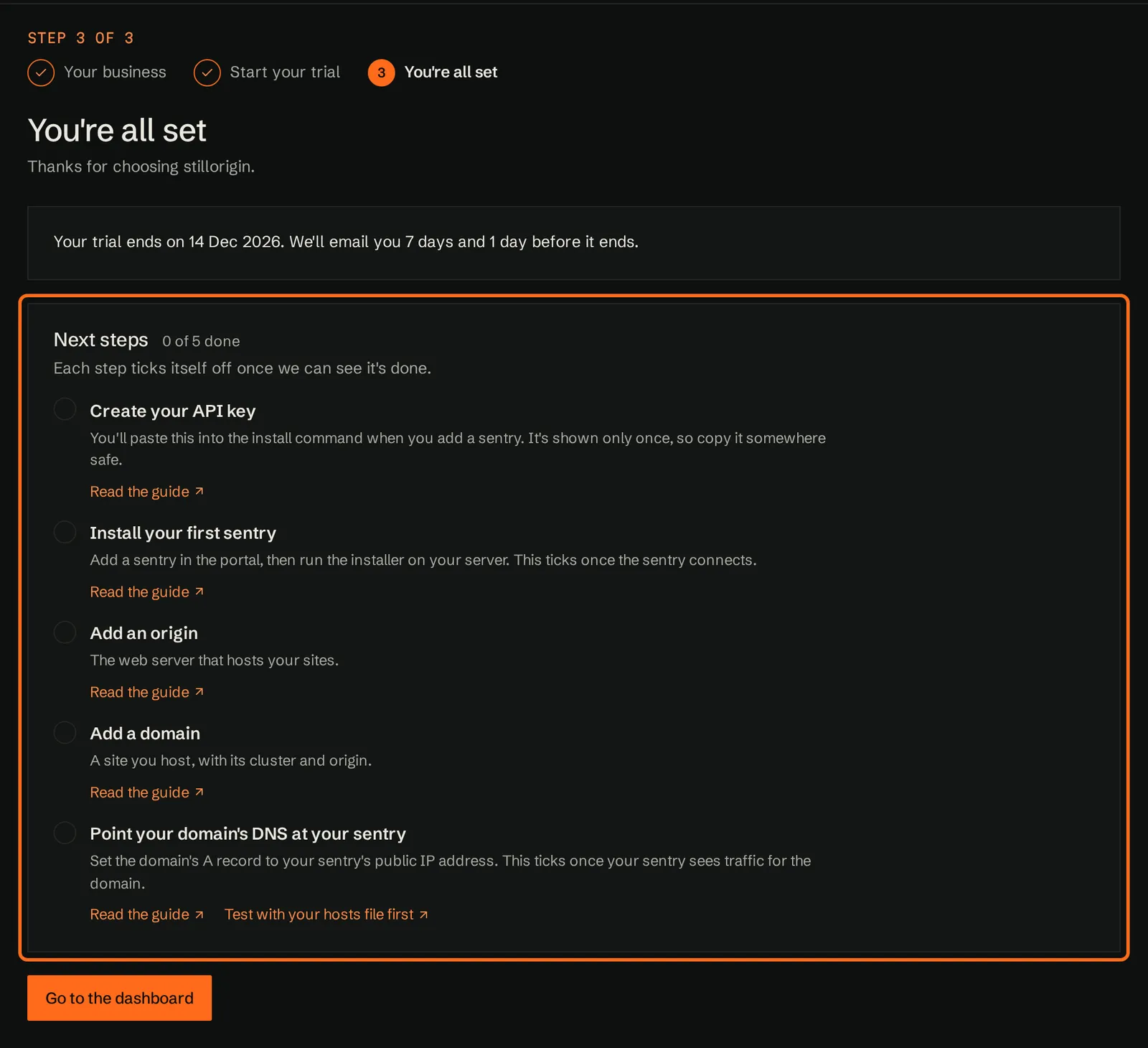
We email you 7 days and 1 day before the trial ends. After the trial, the card is charged unless you cancel first. There's one trial per business. See Billing and the pricing page.
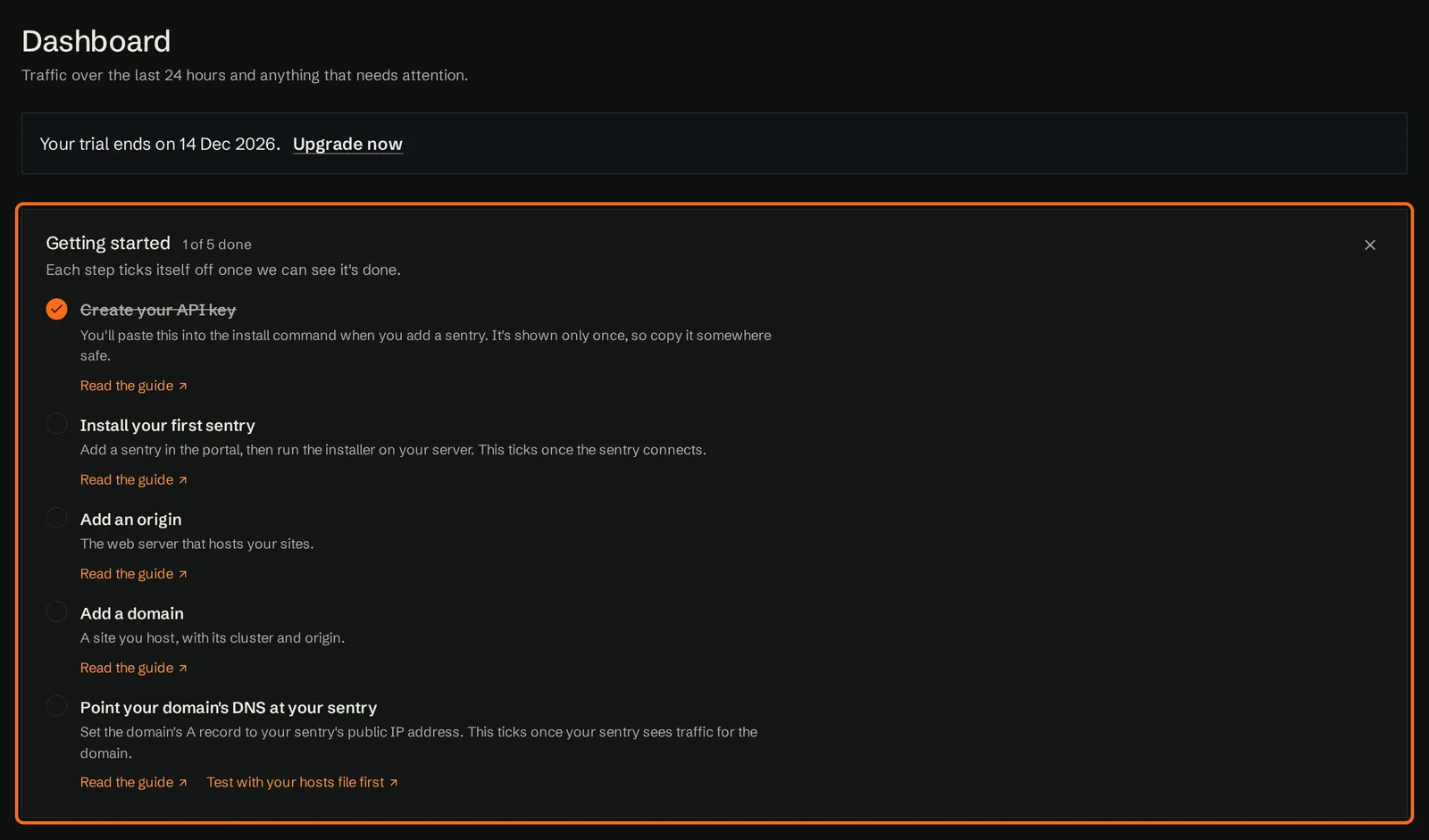
The Getting started list
The Next steps list also appears on your Dashboard as Getting started. Each step ticks itself off once the portal can see it's done:
- Create your API key
- Install your first sentry
- Add an origin
- Add a domain
- Point your domain's DNS at your sentry
Each item links to the right page in the portal, and Read the guide opens the help for that step. You can hide the card with its Hide button (×).
If you clicked Skip for now, the dashboard shows Start your 30-day trial to add your first sentry. with a Start your trial link. You can also start it from Billing, under Subscription.
Common problems
| Problem | What to do |
|---|---|
| No email arrives | Check your spam folder. The link works once and expires after 24 hours. If it has expired, sign up again. |
| Throwaway email addresses can't be used. | Use an address at your own business domain, or another address you check. |
| stillorigin is only available to web hosts and server providers. | Tick I run a hosting business or manage servers for clients. stillorigin is for hosts. If you own a website, ask your host about stillorigin. |
| There's already an account for this email address. | Sign in instead, or click Forgot your password? on the sign-in page. |
| Too many sign-up attempts. | Wait an hour and try again. |
| Your details are saved, but our payment provider hasn't accepted them yet. | Check the message above it, fix the details and save again. |
| The sign-in code doesn't arrive or has expired | Codes work for 10 minutes. Sign in again to get a new one. |