WordPress protection
Set a domain's Type to WordPress (when you add it, or later on Edit domain under Cluster and origin server) and turn Website protection on, and the sentry adds rules for the most common attacks on WordPress sites.
The WordPress hardening rules below block as soon as Website protection is on, even while the domain is in log mode. So do rate limits and the optional admin login lock, if you turn it on. Log mode only affects the WAF and the path traversal and private file rules.
You'll find these rules on Edit domain, under WordPress rules. Open the domain from Domains, click Edit domain, then WordPress rules in Settings on this page. This section only appears for WordPress domains. The Protection tab shows whether the admin login lock is on; to change it, use Edit.
These rules need Website protection. See Network protection vs Website protection and HTTPS inspection.
What is blocked
These requests are blocked in log mode and in blocking.
| Request | Why it is blocked | Log reason |
|---|---|---|
/xmlrpc.php | A common target for password guessing and pingback abuse | xmlrpc |
Script files (.php, .phtml, .phar, .php5, .cgi, .pl) under /wp-content/uploads/ | Uploads should only contain media; a script there is usually a planted backdoor | uploads-exec |
Any .php file under /wp-includes/ | WordPress never needs visitors to load these directly | wp-includes-php |
wp-config.php, wp-admin/install.php, wp-admin/upgrade.php | Configuration and installer files | wp-install |
/wp-json/wp/v2/users | Lists user names that attackers then try passwords against | user-enum |
Login and admin area
By default, the WordPress login page (/wp-login.php) and admin area (/wp-admin/) are open to everyone, just as they are without stillorigin. Two things still protect them:
wp-login.phpis limited to about 4 requests per minute per IP address, with a small burst allowance. Going over that gets HTTP 429 (http-429).wp-admin/install.phpandwp-admin/upgrade.phpare always blocked (wp-install).
Admin login lock
The Admin login lock is optional and off by default. When it's on, only the IP addresses you list can open wp-login.php and anything under /wp-admin/. Everyone else gets a 403 error, logged as wp-admin-lock. The lock blocks in log mode too.
/wp-admin/admin-ajax.php stays open to everyone, because themes and plugins call it from public pages, for example for contact forms and shopping carts.
Each domain has its own lock, and only WordPress domains with Website protection on use it.
Turn on the lock
Only an account owner can change the lock.
- Open Domains and click the domain's name.
- Click Edit domain, then WordPress rules under Settings on this page. Find Admin login lock.
- In Allowed IP addresses, enter one address per line. Add your own IP address first, then every address your customer logs in from. You can use IPv4 or IPv6 addresses, or ranges such as
203.0.113.0/24, up to 50 in all. To find your address, open Check an IP on the computer you log in from. It shows the address you're visiting from. - Click Turn on lock, read the reminder and confirm.
You should now see On next to Admin login lock, and Admin login lock saved. Your sentries pick up the change within about a minute.
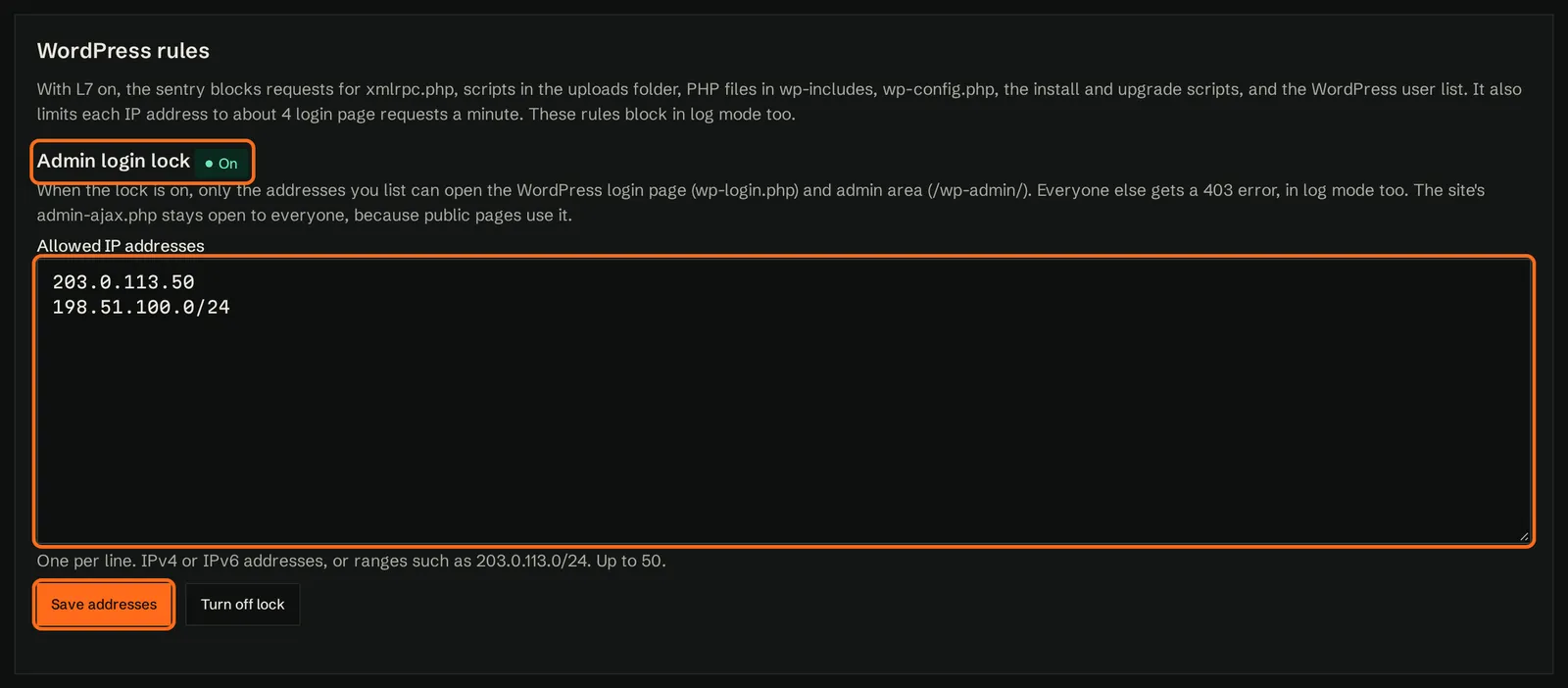
To change the list later, edit it and click Save addresses. To turn the lock off, click Turn off lock. The lock can't be on with an empty list, so to remove every address, turn the lock off first.
Anyone whose address isn't on the list gets a 403 on the login page and admin area, including you. Home and mobile internet addresses often change, so if your customer's address changes they'll need you to add the new one. If you're locked out, an account owner can turn the lock off from the portal at any time.
When the lock applies
- HTTPS: the lock covers HTTPS visits once the domain's HTTPS is inspected. While the Protection tab, or HTTPS on Edit domain, shows HTTPS passed through, only plain HTTP visits are checked. See HTTPS inspection.
- Sentry version: the lock needs the latest sentry release. If a sentry is behind, click Force on its row on the cluster's Edit page. See Sentry updates.
Letting domain owners set the lock
If you use domain owner access, you can let owners set the lock for their own site. Tick Lock their WordPress login page and admin area to IP addresses they choose under What domain owners can change on Owner access. It's off by default.
- A lock you turn on stays yours. Owners can't change the list or turn it off, even when they're allowed to set the lock. They see that their host has locked the login page and admin area, and how many addresses are allowed. If they try to change it on a page that hasn't updated, they see: Your host has turned on the admin login lock for this site, so you can't change it here. Ask your host if it needs changing.
- While it's allowed and your lock is off, the owner sees Admin login lock on the Settings tab in the owner area and can set their own lock, change the list, or turn it on and off.
- While it isn't allowed, owners can't set or change a lock. If you've turned it on, they still see the note that their host has locked the login page and admin area.
- If you take the permission away, a lock the owner set stops applying, but it's kept. WordPress rules on Edit domain tells you: The domain owner set this lock, but it isn't applying because owners aren't allowed to set the admin login lock. To apply it, allow that on Owner access, or save it here as your own setting. You can save it there as your own setting to apply it again.
Other content types
Domains of type Drupal or Joomla get the general Website protection rules. There are no hardening rules like these for them yet. When the WAF is on, Drupal domains use the official Drupal tuning, and WordPress domains use the WordPress tuning.
If a WordPress rule gets in the way of something your site needs (for example XML-RPC for an older app), set the domain's Type to Generic on Edit domain, under Cluster and origin server, to switch the WordPress rules off. This also switches off the WAF's WordPress tuning, so if the WAF is on it may flag more of your site's normal requests. After the change, check what the WAF blocks, or would block in log mode.